

Overview
When you create an Order, Ollang can look at the source content together with the context assets you selected (Memories, Glossaries, Style Guides, guidelines) and tell you, before checkout, how much of the work is already covered by approved material. After the Order is translated, the same signals are recorded per segment as evidence, which drives the review classification and the human-review estimate shown on the Order details page. This page explains every number you will see along the way:- Full (exact) match and fuzzy match against a Memory
- Glossary coverage and Style guide availability
- The Translation readiness score and the suggested review policy
- Segment classification (auto-approved, review recommended, flagged)
- Assets utilized, evidence, and the billable / words for review estimate
Translation readiness is advisory. It never blocks checkout, never changes the
price you are quoted, and never rewrites your workflow’s review settings by
itself. Use it to decide which assets to attach and how much human review to
plan for.
Readiness scoring, the context asset picker, and the Assets utilized card are
feature-gated. If you do not see them on the New Order or Order details pages,
contact your Ollang account manager to enable context management for your
workspace.
Context assets
A context asset is any piece of approved material Ollang can ground a translation on. Each asset carries a type, a scope level, and a selection source that explains why it was used for a given Order.
Memories are never auto-attached: a Memory is only used when it is explicitly selected for the Order. Glossaries and Style Guides are auto-resolved from the project and workspace scope (glossaries additionally filtered by source language) unless you make an explicit selection, in which case your selection is authoritative.
For how to create and manage these assets, see Memory, Guidelines, and Custom Instructions.
Memory matching
Matching is performed per segment. A segment is one subtitle cue, one document paragraph / cell, or one line of the source text, depending on the Order type. Before comparing, both the source segment and every Memory entry are normalized:"Save changes?" and "save changes" are treated as the same text.
Full (exact) match — “TM exact”
A segment is a full match when its normalized text is identical to the normalized source text of an entry in one of the selected Memories.- Only active Memory items are considered; removed items are ignored.
- Each exact match is recorded as deterministic evidence of kind
tm_exactwith a match score of 1.0. - TM exact coverage = matched segments ÷ all non-empty source segments, as a percentage.
Fuzzy match — “TM fuzzy”
Segments that did not get a full match are then compared against Memory entries using token Dice similarity: the two normalized texts are split into unique words andA and B are the word sets of the source segment and the Memory entry. A segment counts as a fuzzy match when its best candidate reaches the 70 % similarity bar (0.7).
- TM fuzzy coverage = fuzzy-matched segments ÷ all non-empty source segments.
- Exact and fuzzy coverage are disjoint: a segment is either exact, fuzzy, or unmatched, so the two percentages can be added.
- If no segment reaches the bar, the readiness card explains why, for example “No segment reached the 70% similarity bar — closest matches averaged 41%.”
Glossaries
Glossary terms are matched as whole words or phrases inside each source segment (soadd does not match inside address), with Unicode-aware boundaries so that non-Latin scripts and scripts without spaces (Chinese, Japanese, Thai, …) match correctly.
Two different glossary percentages exist, and it helps to know which one you are looking at:
Each term hit is recorded as deterministic evidence of kind
glossary_term, including the source term, the target term, and whether the term is forbidden.
Forbidden terms are terms your glossary marks as do not use. When a forbidden term is present in the source:
- the readiness report adds the
forbidden_terms_presentcaveat, and - every segment containing it is always flagged for review, regardless of any other score.
Style guides
A Style Guide contains rules that apply to the whole document (tone, register, formatting, capitalization, …) rather than to individual segments, so there is no meaningful per-segment coverage percentage for it. Readiness therefore only reports availability:- a Style Guide is attached → the style component is 100 %
- no Style Guide is attached → Not available (0 %)
Translation readiness score
The Translation readiness card on the New Order form combines all the signals above into a single 0–100 confidence score. It is computed asynchronously: the card creates a readiness report, polls until it iscompleted, and then shows the breakdown.
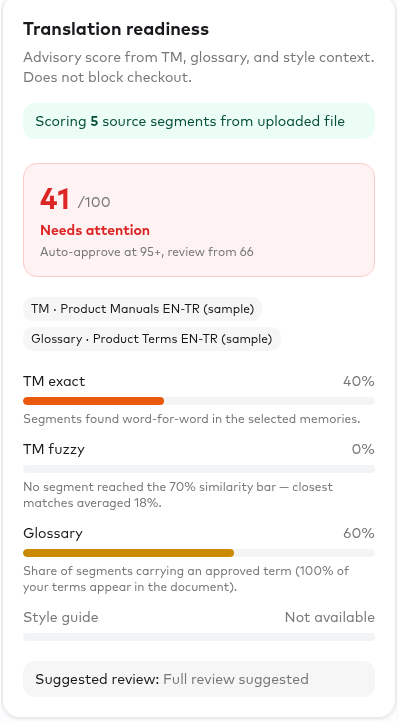
Inputs
Bands and suggested review policy
The score is mapped onto the same classification thresholds that are later used for segment classification, so what you see before the Order and after the Order line up:
Thresholds are configurable per workflow (see Review Gates); the readiness report records the thresholds that were actually used. The suggested policy is a recommendation only. Ollang does not change your review nodes automatically.
Caveats
The report lists caveats that qualify the number:
The report also records its content availability:
full_text when source segments were available for matching, counts_only when only source document URLs were supplied and the text still had to be fetched and parsed server-side, and none when nothing could be read (which produces the no_source_text caveat).
The card also tells you what to add to raise a low score (for example attach a Memory for this language pair, or a Style Guide).
Segment classification after translation
Once the Order is translated, each segment is scored from the evidence recorded for it and classified into one of three review buckets.
The classification thresholds are the same
autoApproveMinScore / reviewMinScore pair used for the readiness bands. The counts of segments in each bucket are what the Assets utilized card summarises as the review classification roll-up.
Assets utilized
The Assets utilized card on the Order details page (Project Management → Order) shows, after translation, which context assets actually influenced the Order and how much of the content is grounded in them.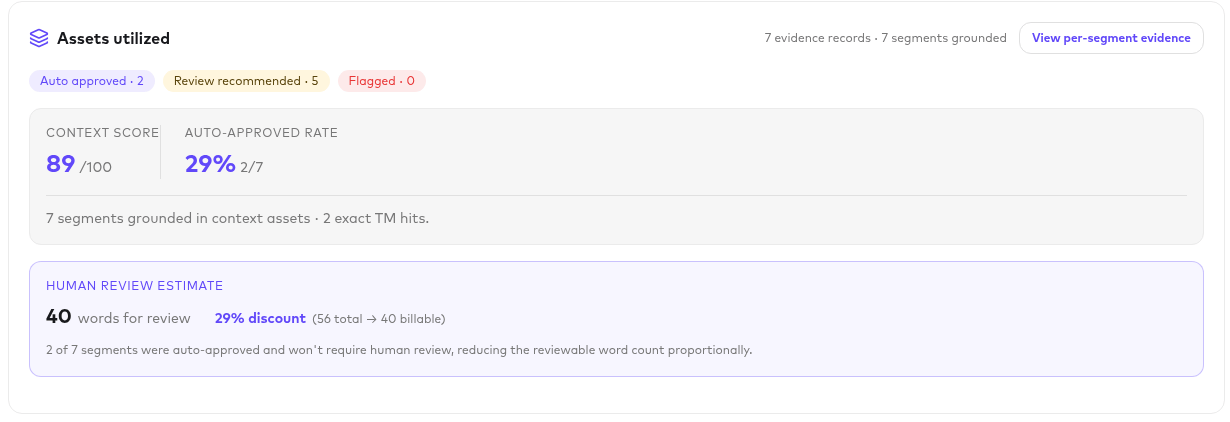
- Name and type (Memory, Glossary, Style guide, Instruction, Guideline document, Subtitle config)
- Version of the asset at the time of the Order, and its scope level
- Selection source: Selected, Auto-resolved, or Legacy
- Evidence count: how many individual matches were recorded against this asset
- Grounded segments: how many distinct segments have at least one match from this asset
- total evidence records and the number of segments with any evidence
- evidence by kind (
tm_exact,tm_fuzzy,glossary_term,style_rule,instruction,ai_reported) - the review classification roll-up: auto-approved / review recommended / flagged counts
- the overall AI confidence reported by the translation pipeline and the context score
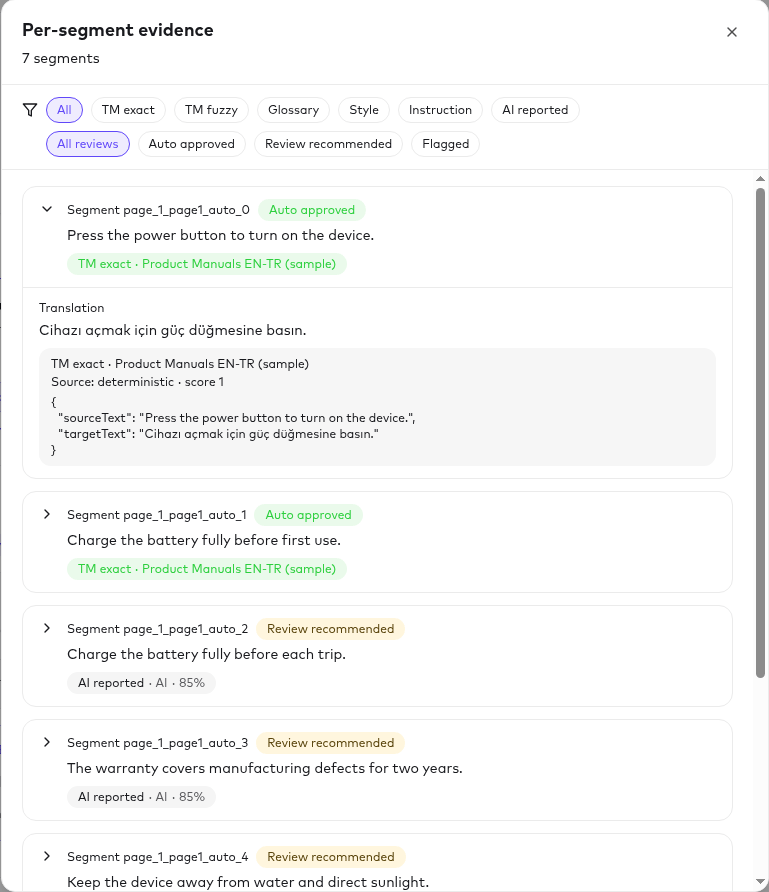
Deterministic evidence (
tm_exact, glossary_term) is produced by Ollang’s
matching services and is exact. ai_reported evidence is the confidence the
translation model reported for that segment; it is stored separately, is not
counted as an “asset”, and is shown with its justification so you can judge it.Human review estimate and billable words
The card ends with a Human review estimate that translates the classification roll-up into words:<total> total → <words for review> billable.
For example, an Order of 10,000 words where 6,200 of 8,000 classified segments were auto-approved shows:
- It is a proportional estimate: the auto-approved share of segments is applied to the word count; it does not sum the exact word counts of the non-auto-approved segments.
- “Billable” here refers to the words you should plan to pay a human reviewer for (in-house or LSP). It is not the Order’s price: the Order was quoted and charged at checkout, and this estimate does not change that quote, the credits consumed, or any invoice.
- Use it to size a Review Gate assignment or an LSP purchase order, and compare it against the pre-order readiness score to check that your assets are paying off.
Putting it together
1
Attach context
On the New Order form, select the Memories you want to reuse. Glossaries and
Style Guides for the project and language pair are auto-resolved; adjust the
selection if needed.
2
Read the readiness score
Check TM exact / fuzzy coverage, glossary coverage, and style-guide
availability. Follow the card’s suggestions (attach a Memory, add a Style
Guide) if the score is low. Readiness is advisory and does not block checkout.
3
Choose a review policy
Use the suggested review policy to configure the workflow’s Review Gate:
spot check for “Ready”, standard review for “Review recommended”, full
review for “Needs attention”.
4
Review the Assets utilized card
After translation, confirm which assets were used, inspect flagged segments,
and use the human review estimate to plan reviewer effort.
5
Feed results back
Approved reviews grow your Memories, which raises exact/fuzzy coverage, the
historical-automation component, and future readiness scores.